Show/Hide members in My Page
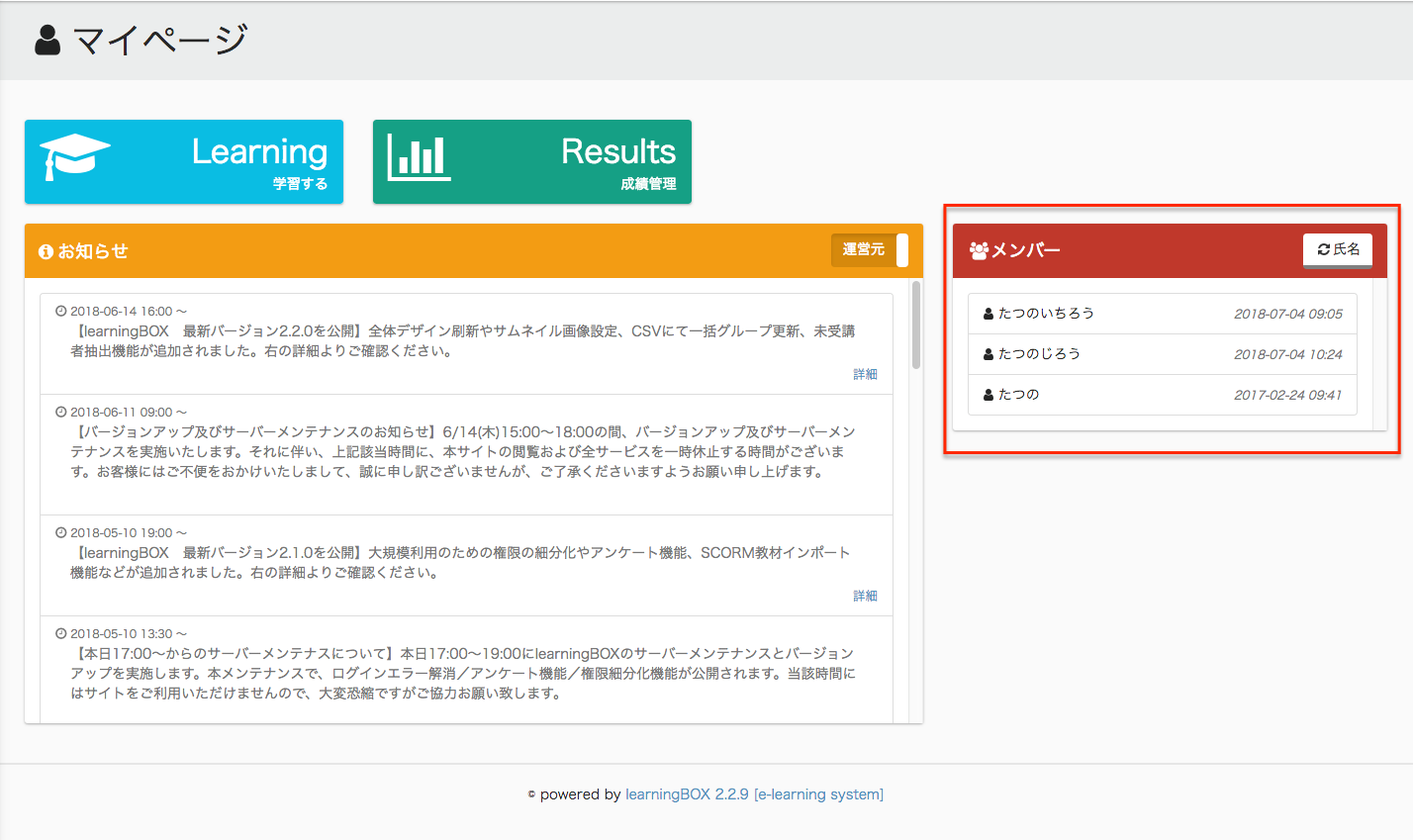
- In this service, there is an administrator (parent user) and a member (child user). In this section, you can show/hide the red frame in the following image (Member's My Page).
- Log in as the administrator (parent user).
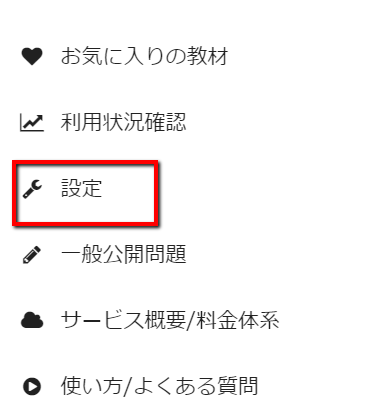
- Click on "Settings" in the sidebar.
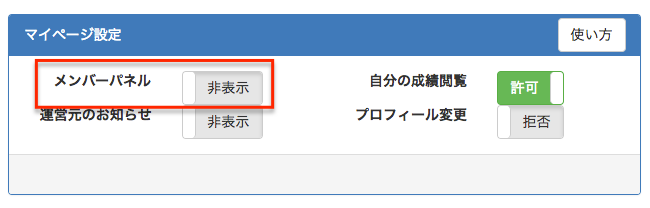
- The "Member Panel" can be toggled between "Show" and "Hide" in the "My Page Settings" to show/hide the panel in the member's (child user's) "My Page".
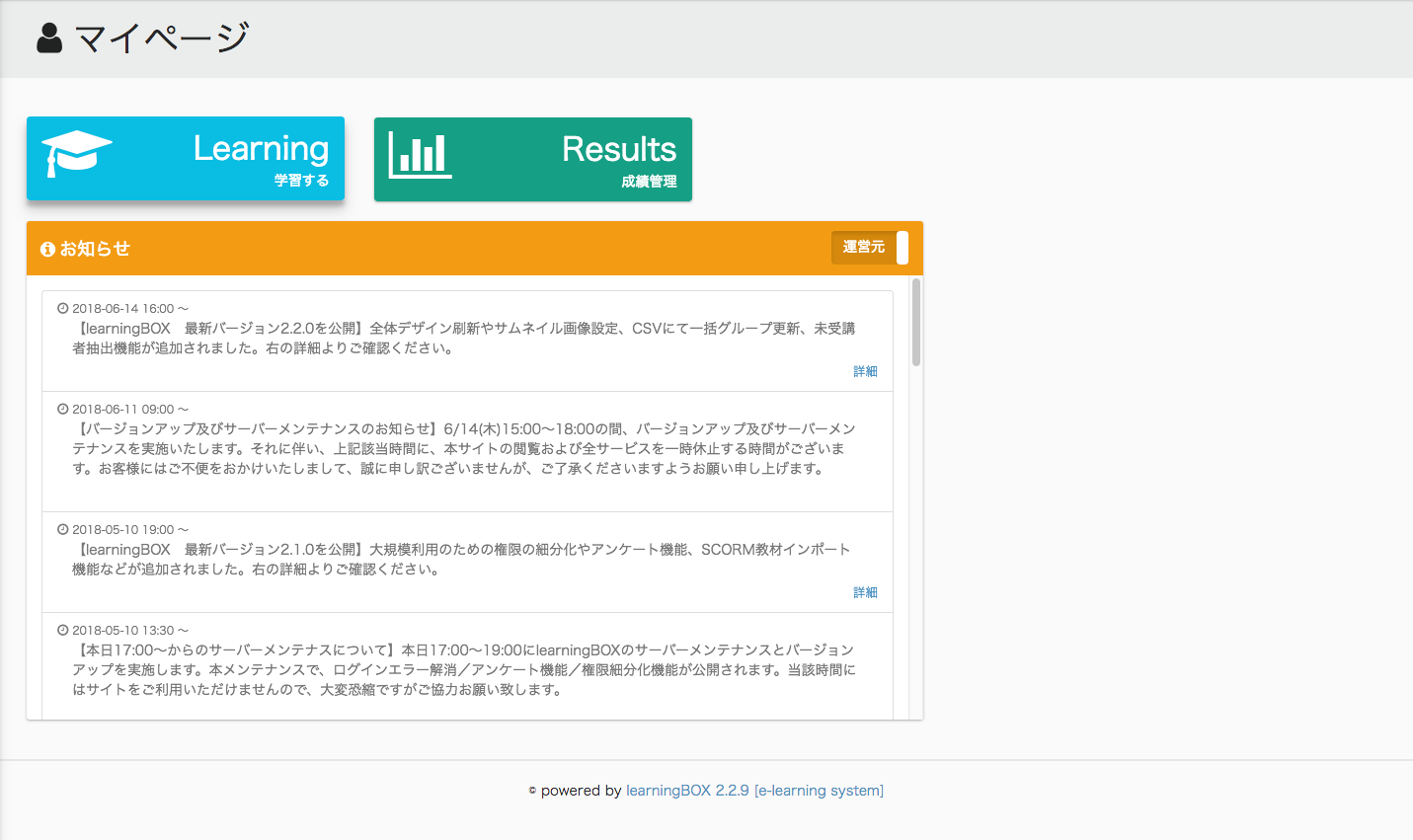
- If "Hide" is selected, the image below will be displayed.
Show/Hide your results in My Page
- Next, you can set whether or not to display your results when you log in.
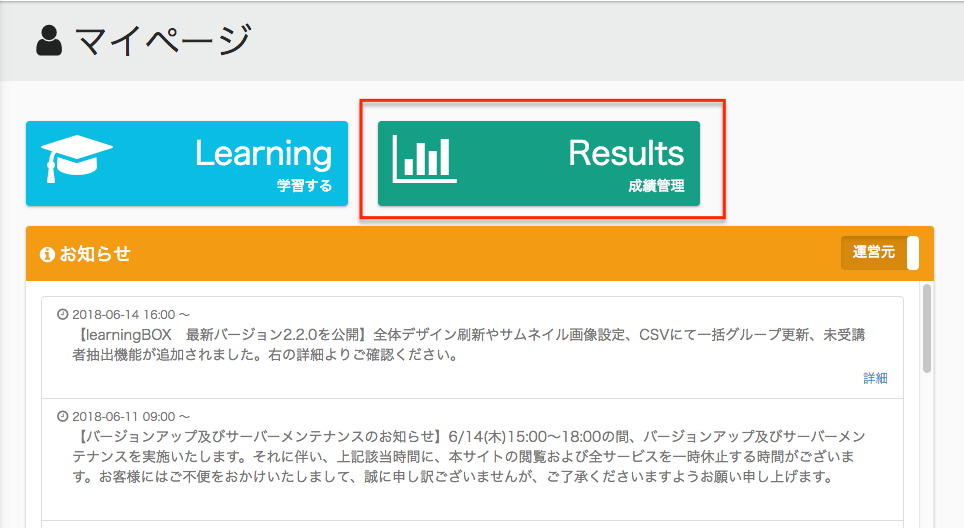
- Log in as the administrator (parent user).
- Click on "Settings" in the sidebar.
- You can show or hide the results of your child users on their My Page by selecting "Allow" or "Deny" for "View my results" in the "My Page Settings".
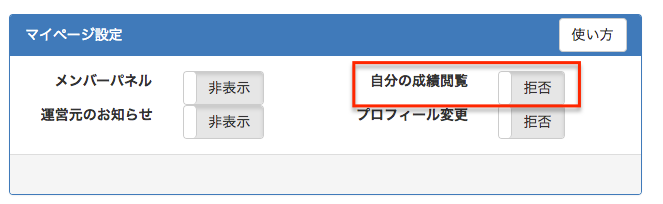
- If you select "Deny", the image below will be displayed.

Set whether members can edit their own profiles on My Page.
- Next, you can set whether or not members can change their own profile when they log in.
- Log in as the administrator (parent user).
- Click on "Settings" in the sidebar.
- In "My Page Settings", you can change "Change Profile" to "Allow" or "Deny" to allow or disallow individual members (child users) to change their profiles.
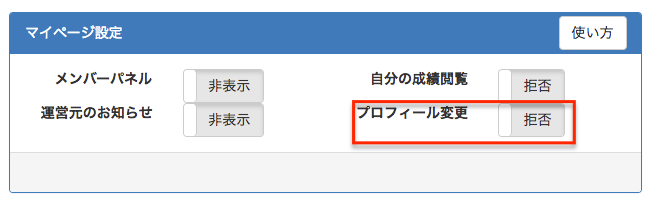
- If you choose "Deny", individual members will not see their profile changes.
Show/Hide the notice from the operator
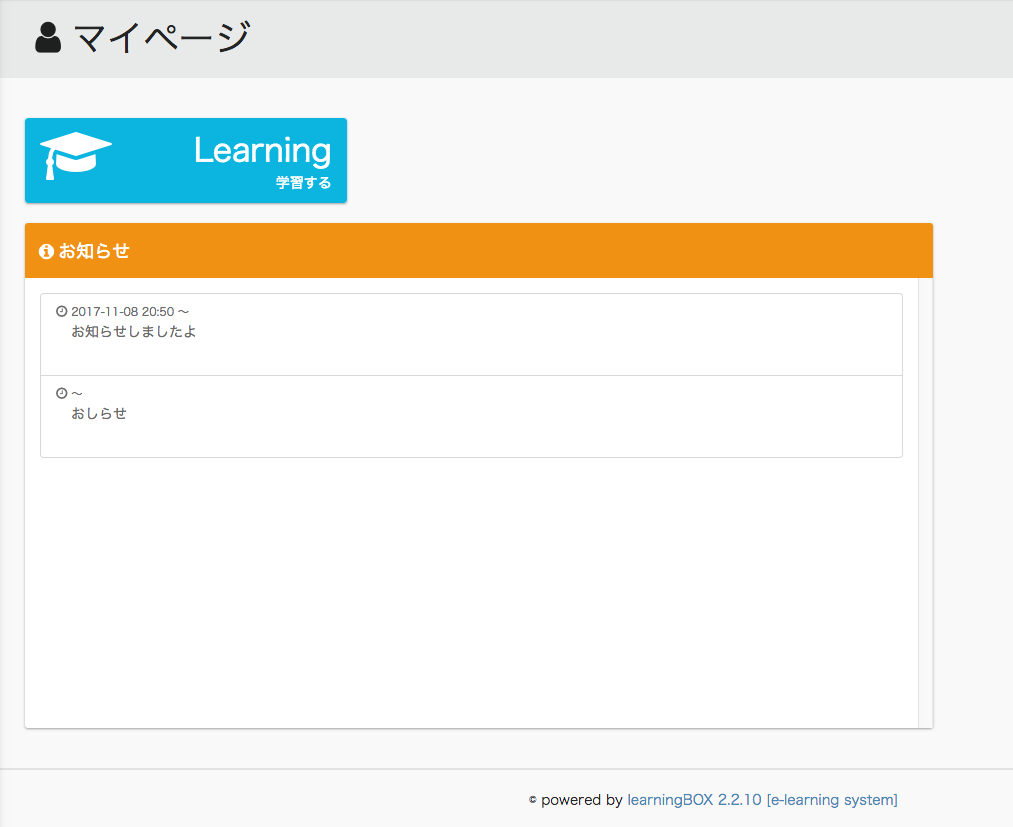
- Finally, when a member logs in, you can set whether or not to display notices from the administrator.
- Log in as the administrator (parent user).
- Click on "Settings" in the sidebar.
- By switching "Notices" in "My Page Settings" between "Show" and "Hide", members (child users) can switch between the "Notices" in their "My Page" and the "Notices" in their "Group".
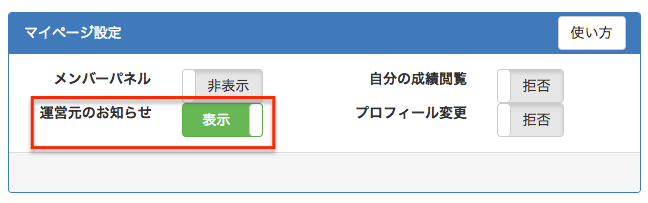
- If you select "Show," a switch for switching will appear in the red frame of the image below.
