Empowering members
- Administrator privileges include "Group Management Privileges", "Materials Management Privileges", and "Grade Management Privileges".
Empowering members
- It is possible to give management rights to registered members.
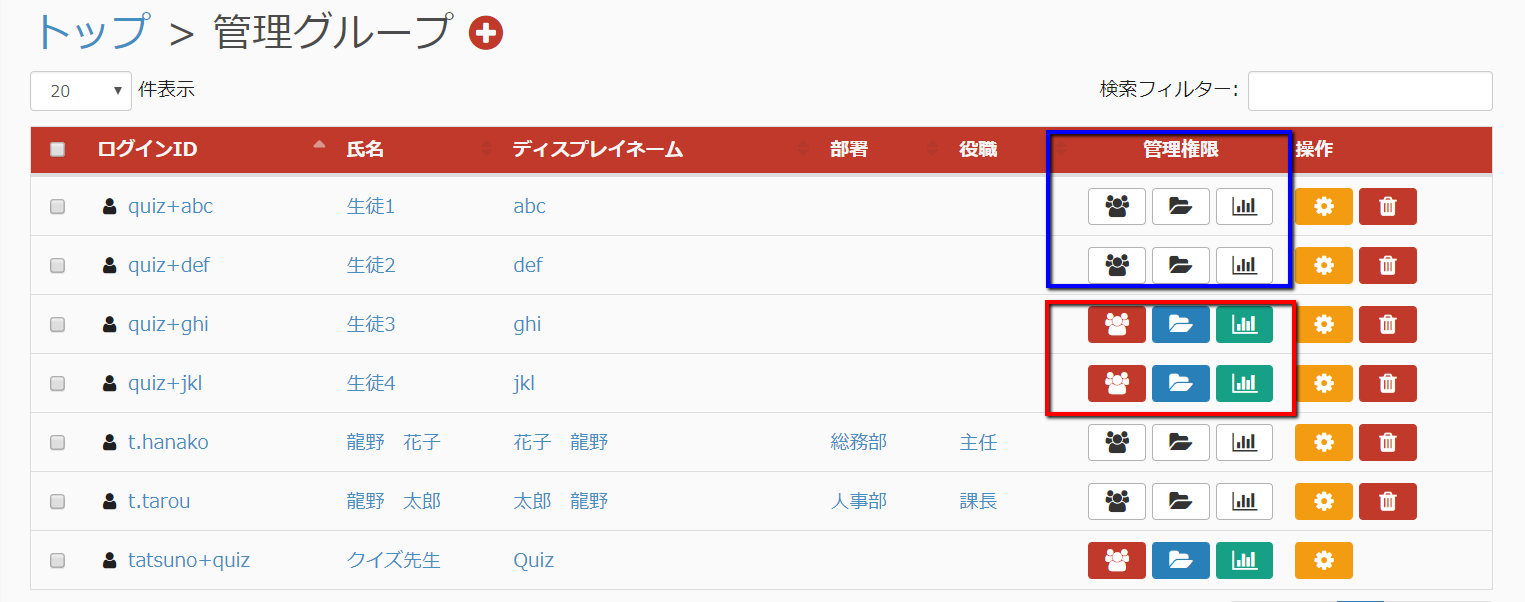
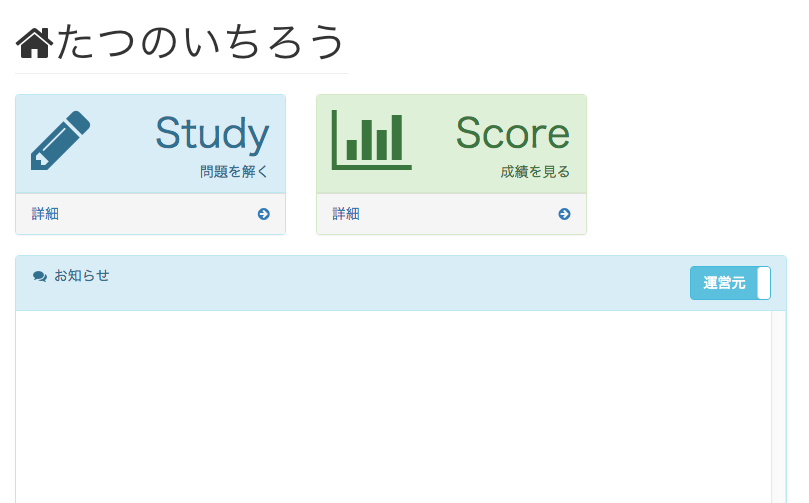
- Members who do not have administrative privileges will be displayed as shown in the blue box above.
If you grant administrative privileges, it will appear as a red frame.
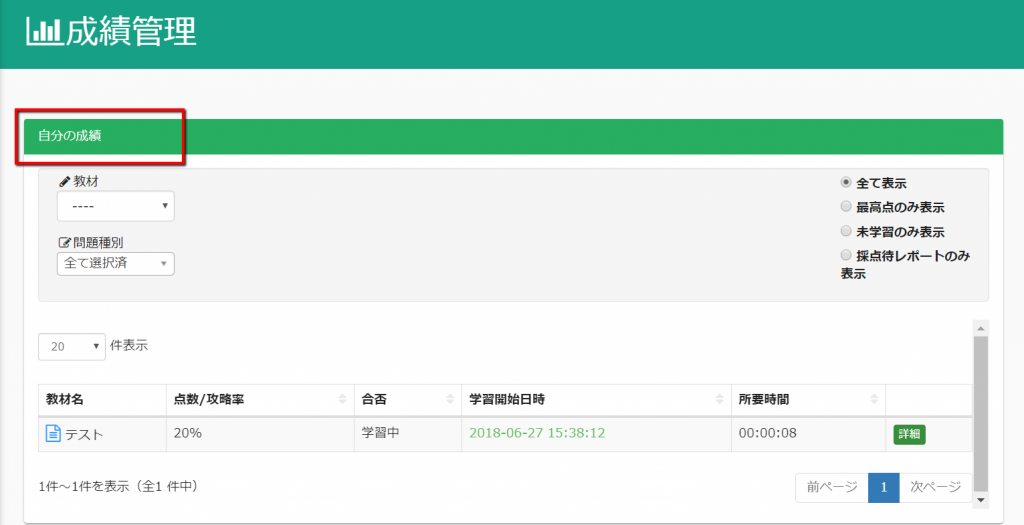
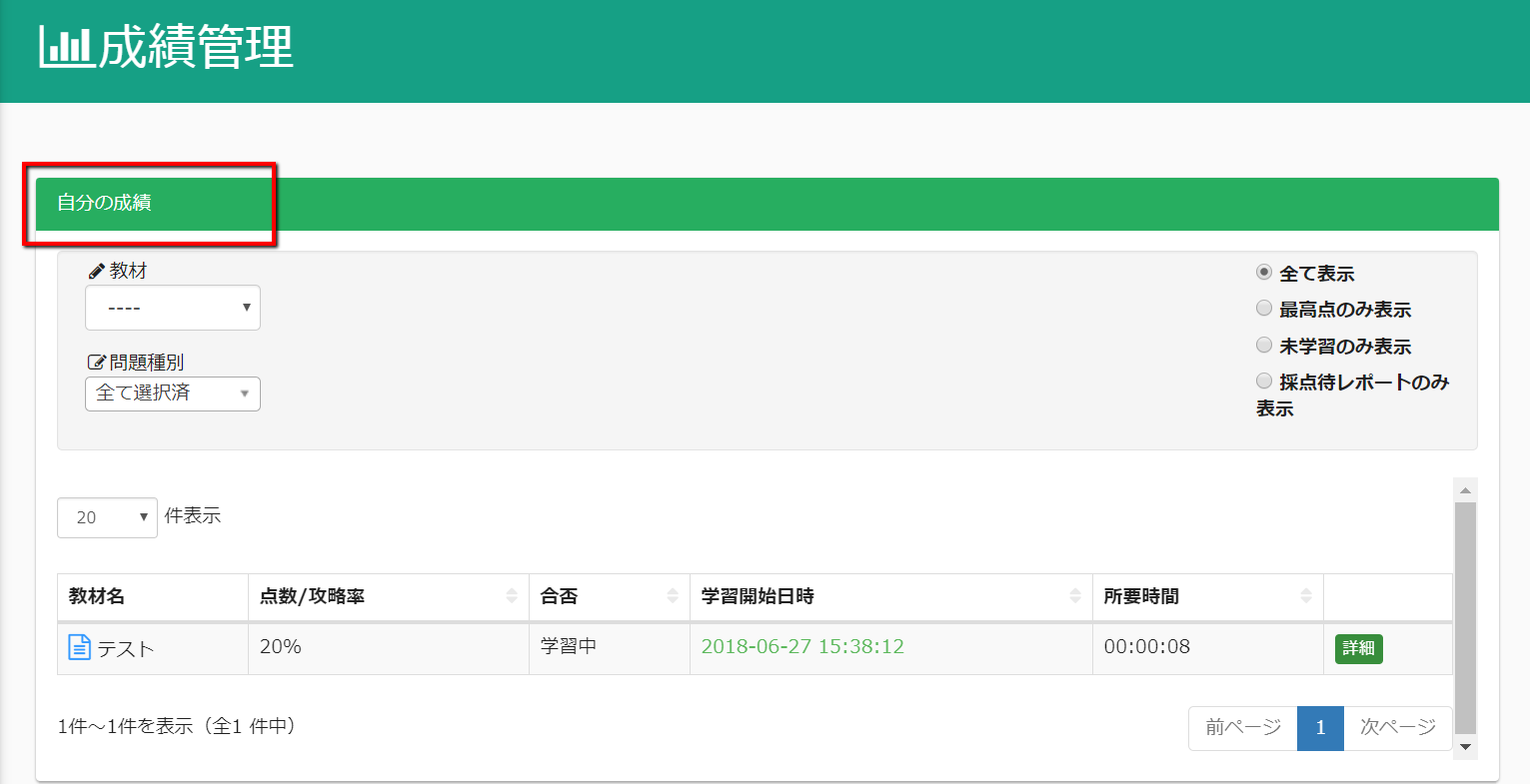
When a non-authorized member logs in, only "Study" and "Manage Grades" will be displayed, as shown in the image below.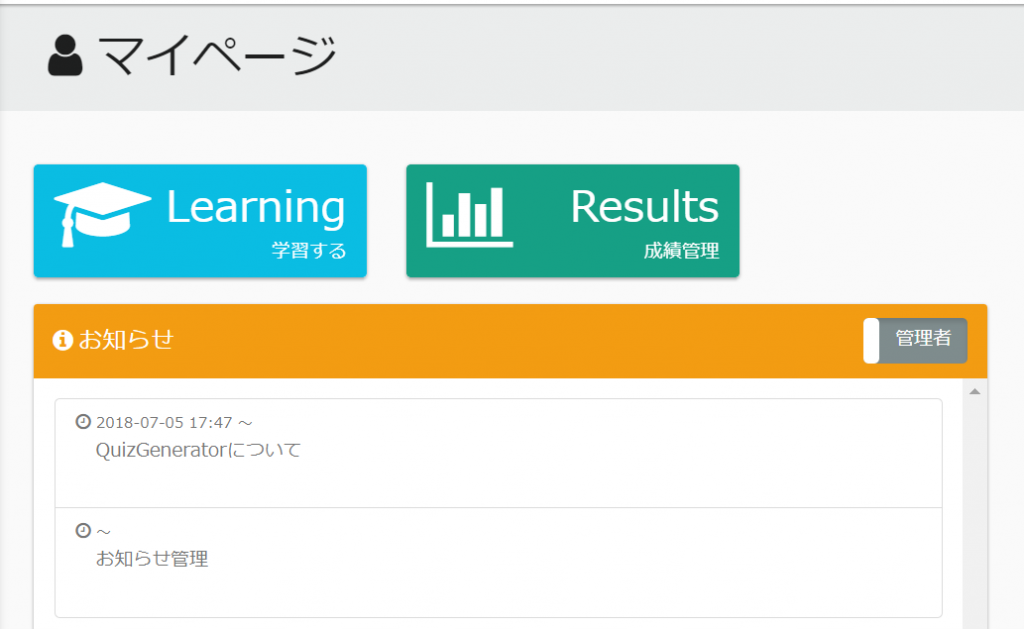 3. Click on "Manage Results" to view only your results.
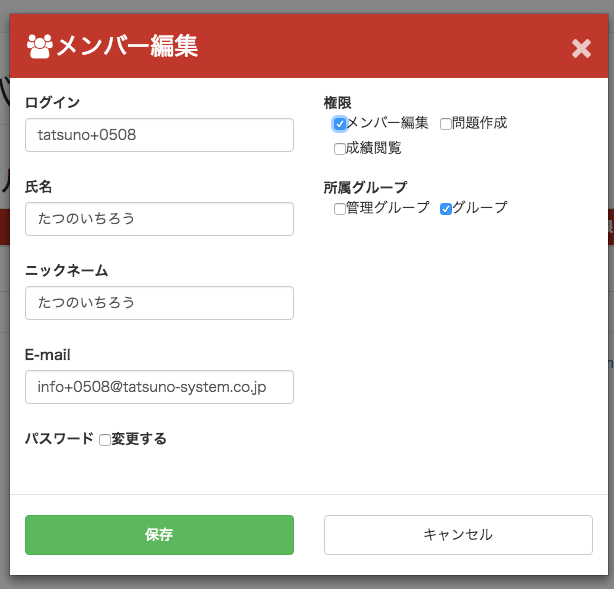
member editing privileges
- You can invite and edit members, and create and edit groups.
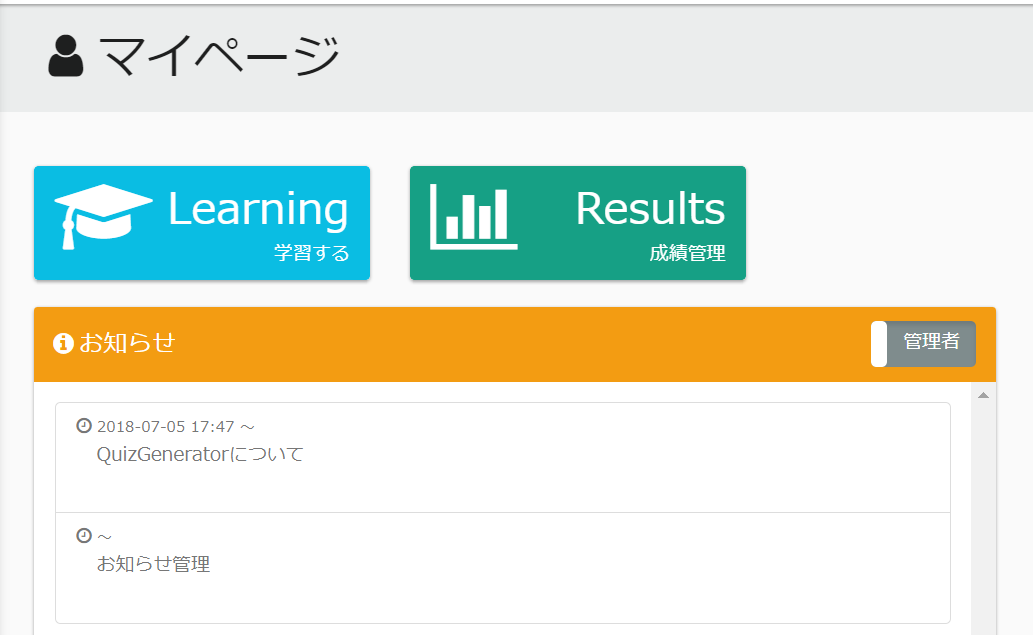
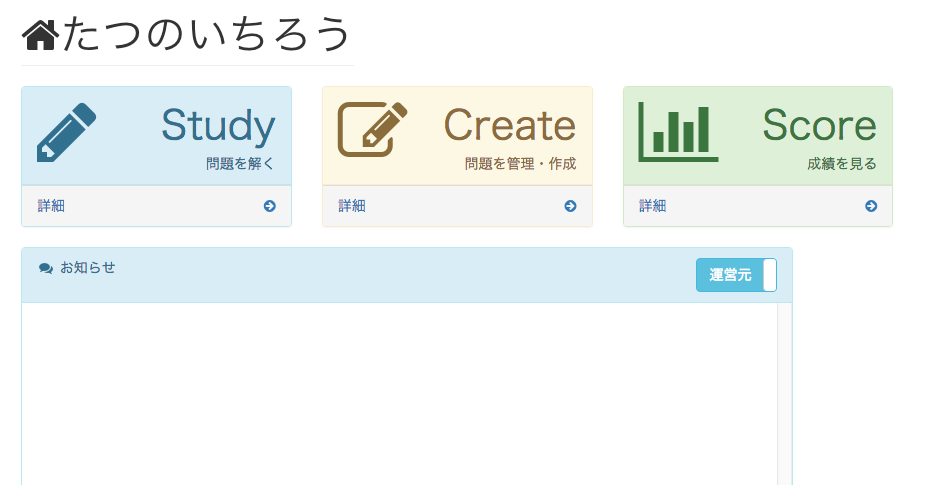
- Once you have granted member editing privileges, "Invite/Edit Member" will appear on the user's My Page.

problem-writing authority
- Permission to create and edit questions, and to create and edit folders.

- Once you have been authorized to create questions, the "Manage and create questions" will appear on the user's My Page.
grade viewing privileges
- This permission allows you to view not only your own results, but also the results of other users.
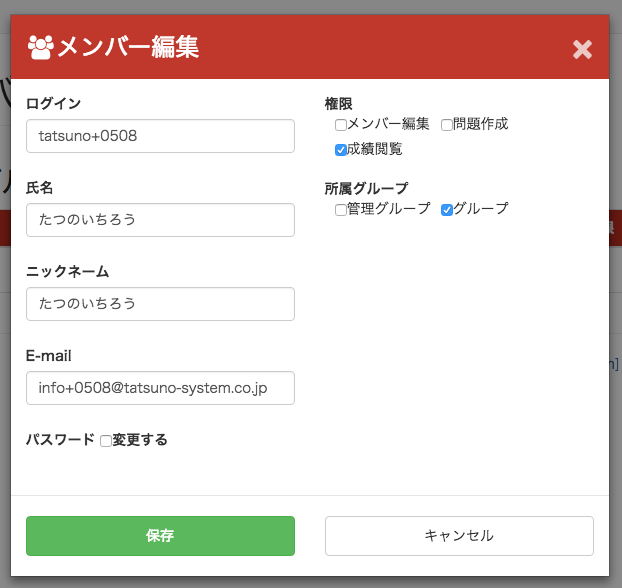
- You can view the grades of other users by giving them permission to view grades.
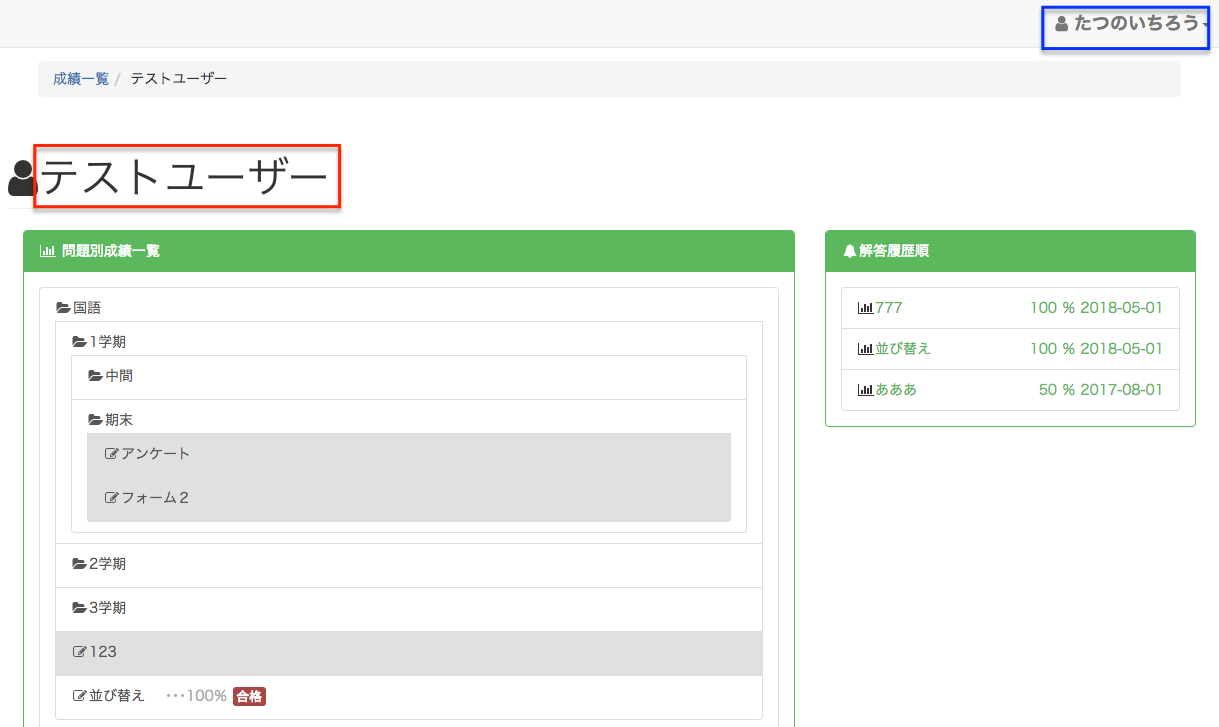
- Pressing "View Grades" will display the grades of all users invited by the administrator, by group, by individual, and by question.
The screen where Ichirou Tatsuno logged in and viewed the test user's results.
More advanced settings
Since learningBox 2.1.0, more detailed permissions can be set.
It is now possible for each user to edit only in a specific folder, only in a specific group, or to see the grades of members of a specific group.
How to set
Select a group from Invite/Manage Members, and click the icon to the right of the user you want to grant permissions to, the icon with the colored frame in the image below.
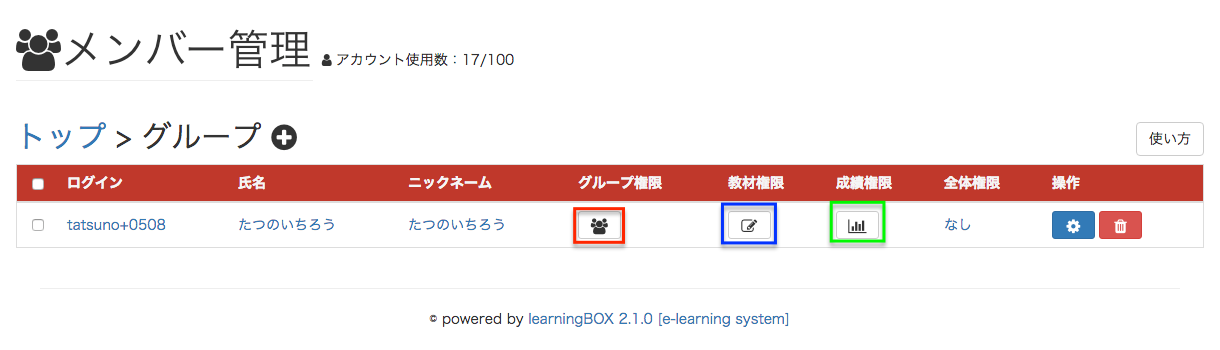
If you have granted permissions at the time of registration, "All" will be displayed.
Clicking on it will open a modal where you can set permissions in a pull-down format.

group management authority
With group management permission, you can invite members only to the group you have set. If you have permissions to only one group, you cannot move members to other groups.

Educational material management authority
The Manage Teaching Materials permission allows you to upload teaching materials only to the set folder.
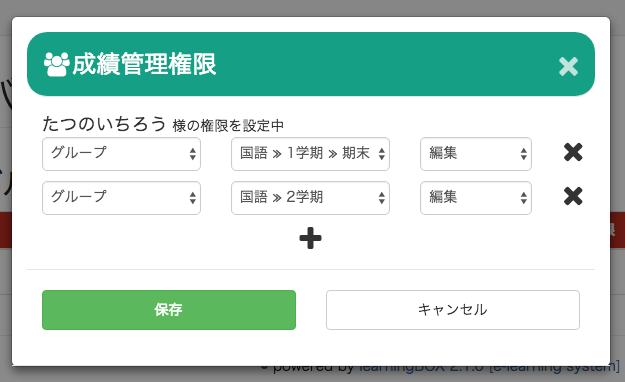
grade control authority
The grade management permission allows you to view only the grades of the materials in the specified folder of the specified group.