About the registration of the license key of QuizGenerator
Starting from learningBOX 2.5.0, you can automatically set up a license key for QuizGenerator, so that quizzes created with QuizGenerator can be used in learningBOX for free, and once the license key is set, you don't have to enter the license key manually every time. Once the license key is set, you don't need to enter the license key manually every time.
If you feel that it is a hassle to enter the license key every time, why don't you take this opportunity to register an account with learningBOX?
⇒Use the learningBOX for free!
This page explains how to set up the license key for learningBOX.
How to set the license key
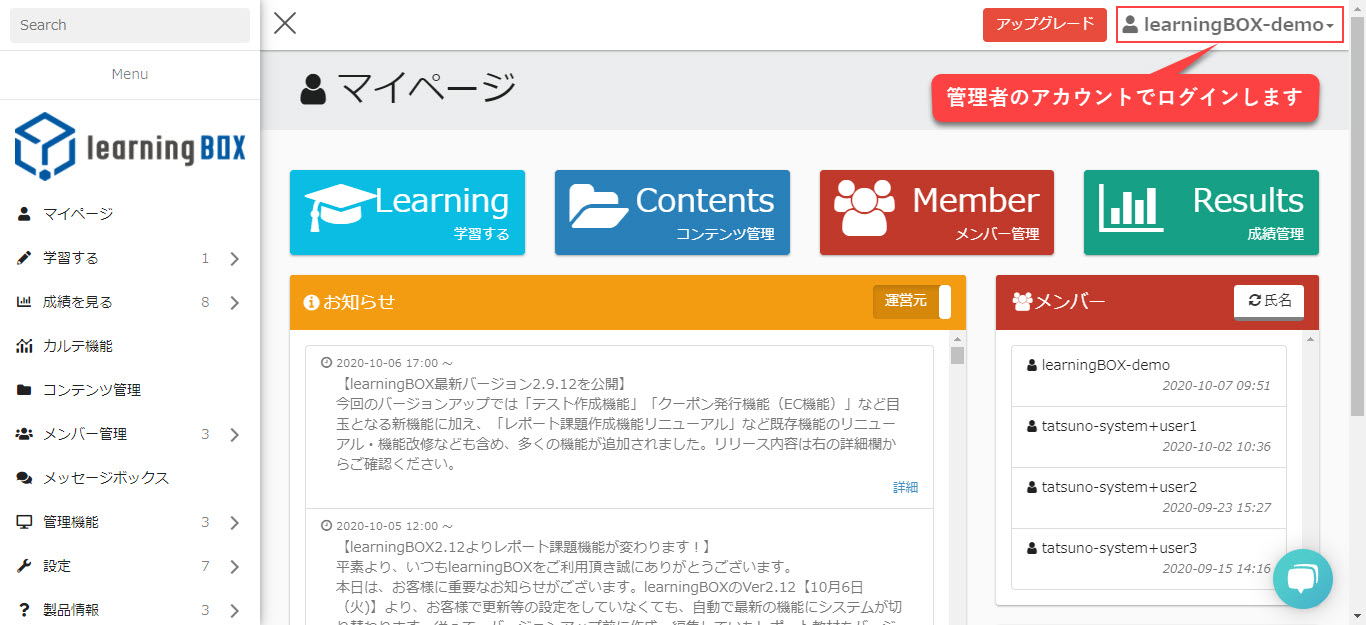
Step 1: Log in to learningBOX with an administrator account.
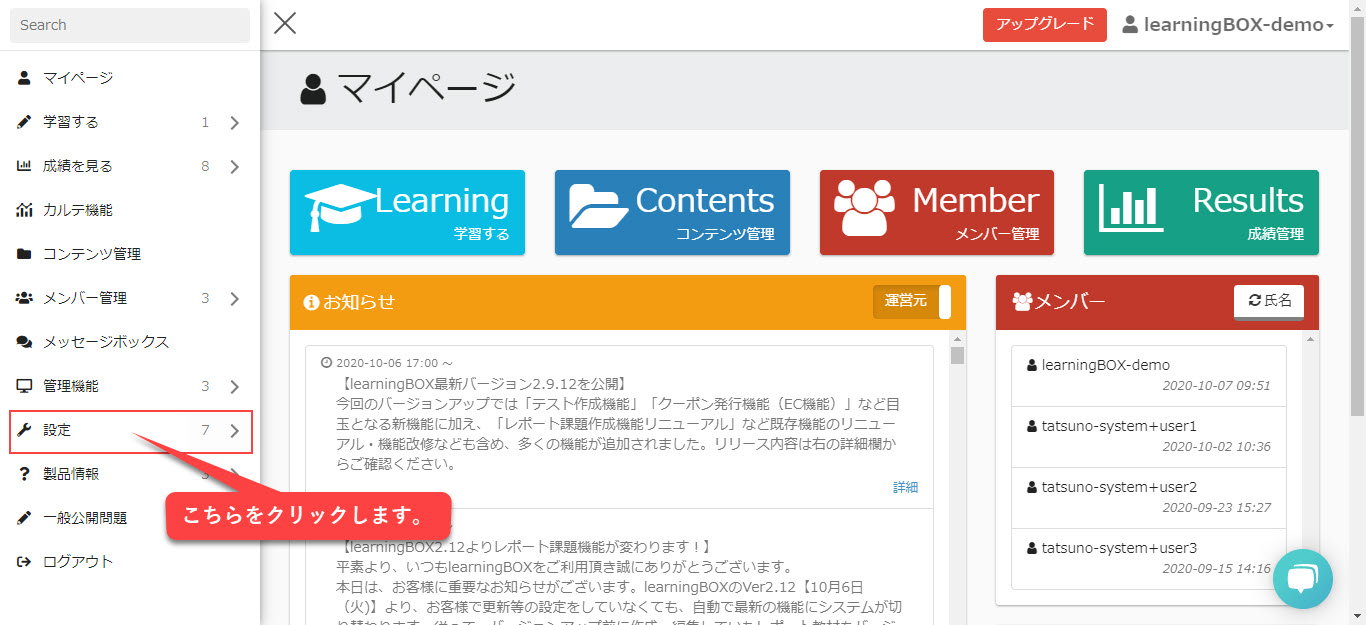
Step 2. Click Side Menu Bar Settings.
The page switches to the setting screen.
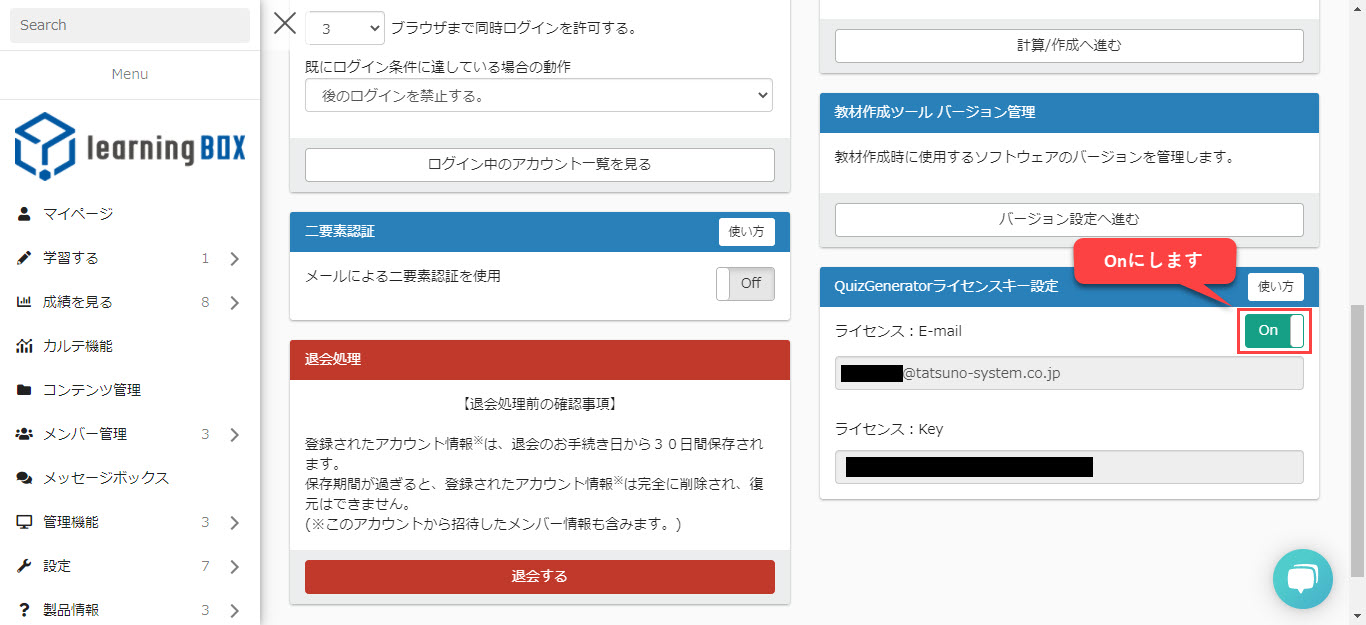
Scroll down to the bottom of the screen, and you will see the item "QuizGenerator License Key Setting" at the bottom right of the screen. The license key will be delivered to the e-mail address you entered at the time of payment. Enter the e-mail address and license key that you entered at the time of payment here.
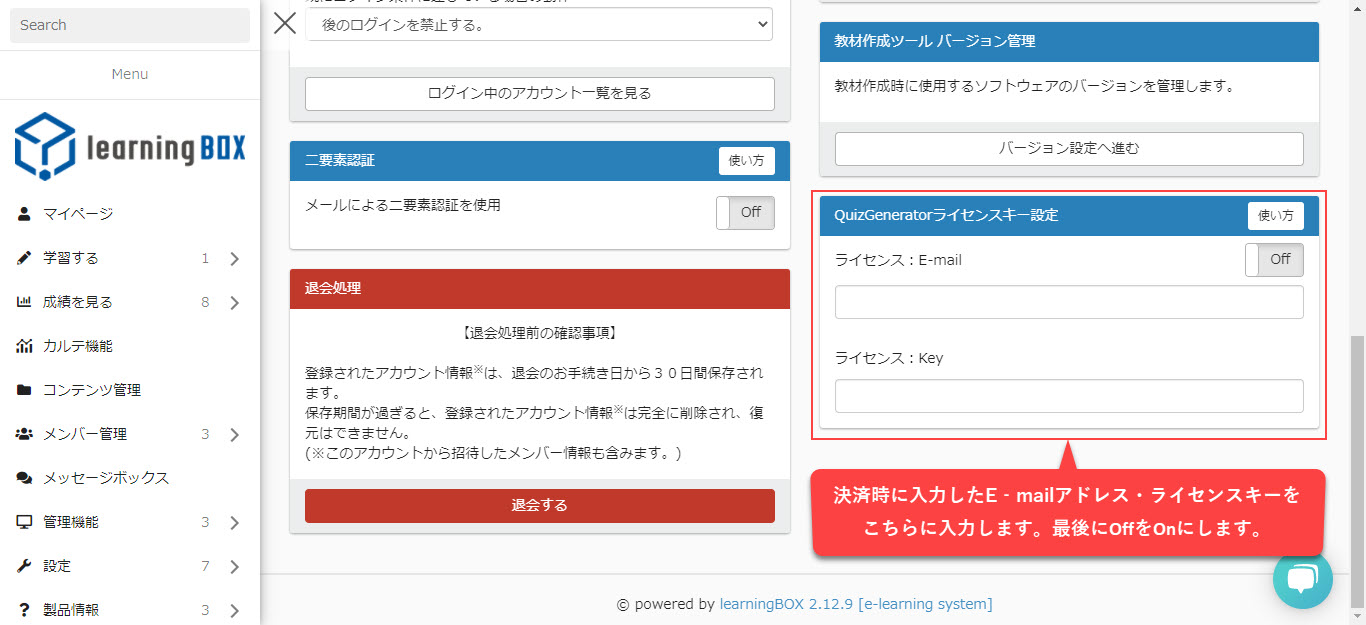
Enter your e-mail address and license key, and turn on the toggle to complete the setting.
After setting the license key of QuizGenerator, quizzes created by quiz creation form in learningBOX or uploaded quizzes will be automatically licensed without entering the optional values "#email:***" and "#key:***".
If you edit the quiz before setting the license key from the content management screen or update the player on the gear button, the license will be applied.